

Keeping your firmware up to date helps your system stay secure, stable, and compatible with new hardware and software.
This guide shows the recommended update paths for Star Labs firmware.
Important notes
-
Please use LVFS for normal firmware updates.
-
If you are using Qubes OS, the simplest manual update route is to boot a standard Ubuntu live USB and run the manual update command from there. If you prefer to stay inside Qubes OS, run the command from a
dom0terminal. -
Automatic updates via the LVFS are now only supported on firmware versions later than
26.05. If you are running a version older than26.05, please follow the steps in the Manual update section. -
You can check your current firmware in Settings > About or with the following command in Linux:
cat /sys/class/dmi/id/bios_version
Update your firmware
Firmware updates should usually appear in your normal software update tool.
elementary OS
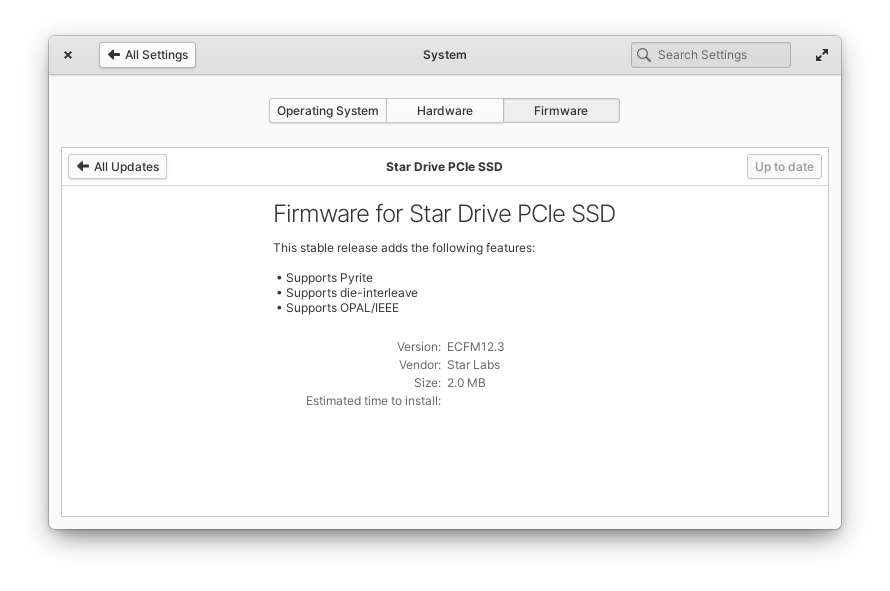
From version 6 onward, firmware updates appear in System Settings → System → Firmware.
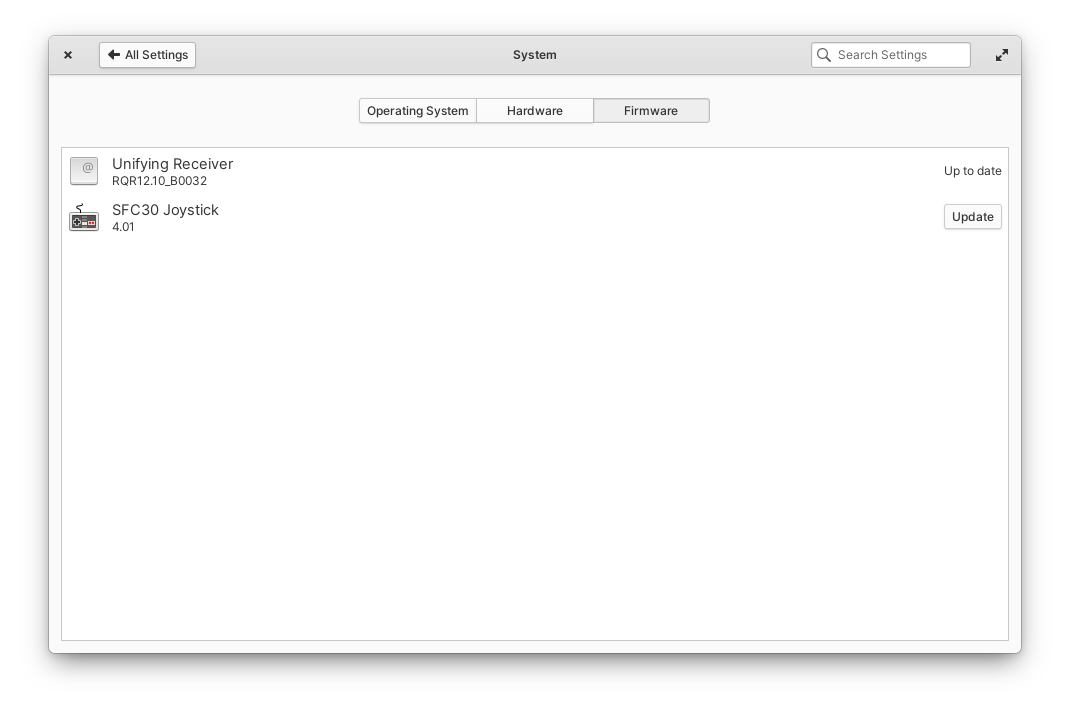
You can view the current firmware information and install updates by clicking on each component.
GNOME Software
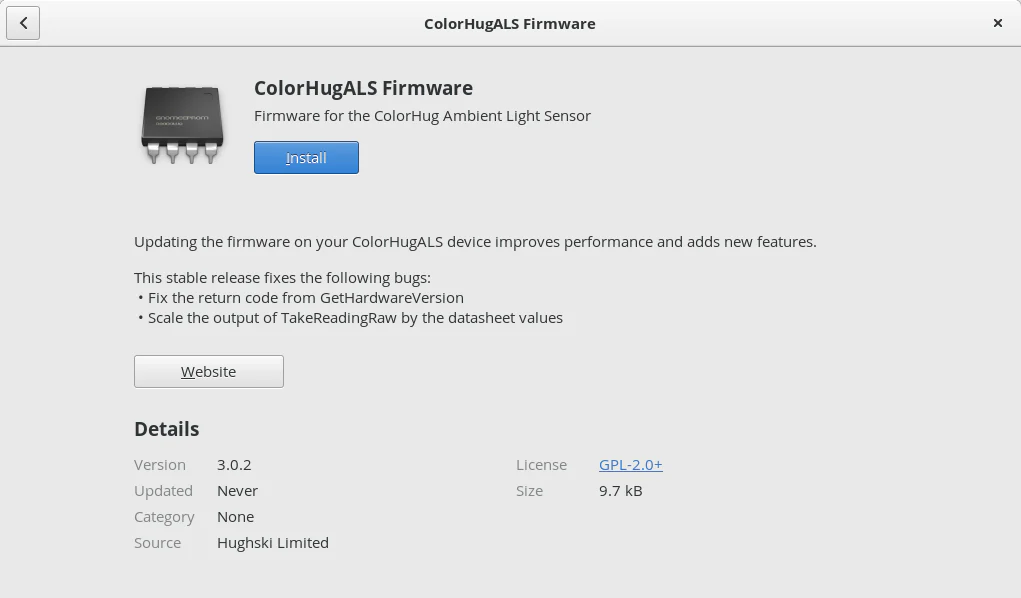
Firmware updates appear alongside your normal software updates in the GNOME Software app.
KDE Discover
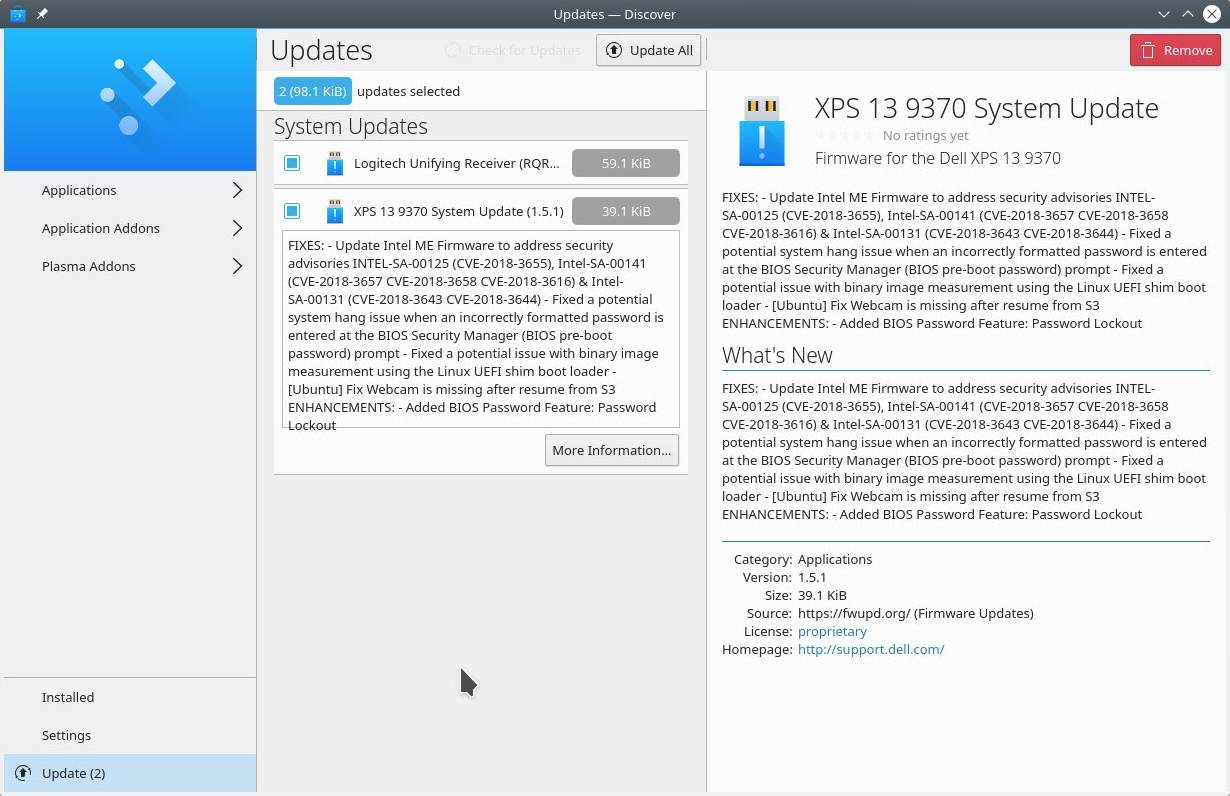
Firmware updates appear in Discover, just like normal app updates.
GNOME Firmware
If your distro does not integrate firmware updates into a software centre, you can use the standalone GNOME Firmware app.
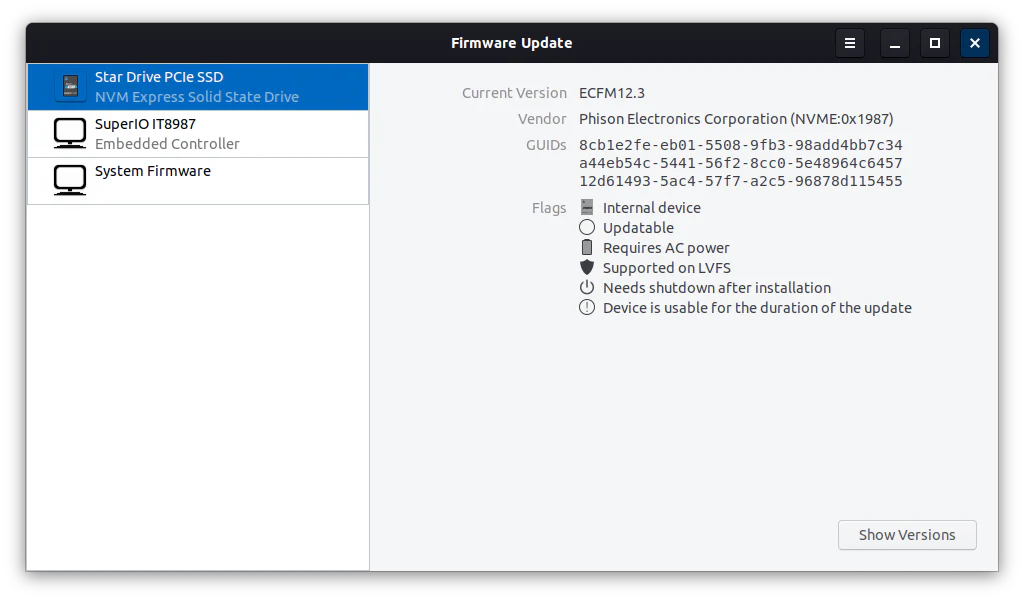
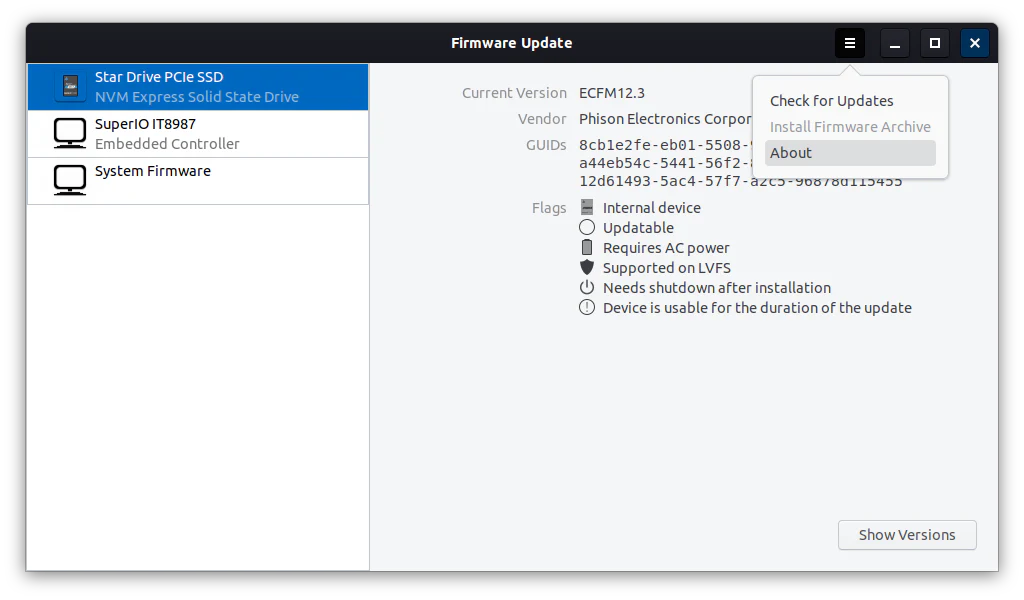
You can check for updates via the menu → Check for Updates.
Terminal
You can also check for and install LVFS updates manually:
fwupdmgr refresh
fwupdmgr get-updates
fwupdmgr update
If fwupdmgr asks you to reboot, reboot when prompted.
Updating the EC
Some updates include EC firmware. This is applied automatically from the G3 state after the firmware update completes.
To enter G3:
-
Shut down the computer (not a reboot)
-
Disconnect the charger
-
Wait 12 seconds until the LEDs flicker
-
Reconnect the charger
Manual update
Use this section if:
-
your firmware update does not appear in your normal update tool, or
-
your BIOS version is lower than
26.05.
You do not need to manually check Secure Boot or BIOS Lock first. The updater checks the required items for you and stops with specific instructions if anything needs changing.
The manual updater currently supports:
-
StarFighter Mk II (Intel variants)
-
StarFighter Mk I (Intel variants)
-
StarBook Horizon
-
StarLite Mk V
-
StarLite Mk IV
-
StarLite Mk III
-
StarBook Mk VII / StarBook Ultra
-
StarBook Mk VI
-
StarBook Mk V
-
LabTop Mk IV
-
LabTop Mk III
-
Byte Mk III
-
Byte Mk II
-
Byte Mk I
If your computer isn't listed, check back later.
Before you begin:
-
Connect the charger.
-
If your device has a battery, charge it to at least 30%.
-
Open a terminal window, either from the launcher or by pressing
Ctrl+Alt+T.
Then run:
curl -fsSL https://raw.githubusercontent.com/StarLabsLtd/firmware/refs/heads/main/updater.sh | bash
The updater will check the machine, show what updates are available, and install the correct files for your model.
If the updater says Secure Boot or BIOS Lock needs changing, follow the message it shows. It can offer to reboot directly into firmware setup for you. After changing the setting, boot back into Linux and run the same command again.
If the updater says Flashrom access is blocked, copy and run the command it prints exactly, reboot, and run the updater command again. If update-grub or the bootloader update command shows an error, do not reboot yet — contact support with the full output.
When the update completes, follow any reboot or shutdown instructions shown by the updater.
Once you are on 26.05 or newer, future updates should appear in your normal update tool or through fwupdmgr.